Akko PC75B Plus - Handleiding mechanisch toetsenbord
- 1 Sneltoetsen
- 2 Systeemcommando's (Windows)
- 3 Systeemcommando's (Mac)
- 4 Achtergrondverlichting instellingen
- 5 Bluetooth-functie overzicht
- 6 Instructie voor Bluetooth-installatie
- 7 Instructie voor het aanpassen van toets-/lichteffecten
- 8 Akko garantie- en serviceverklaring
- 9 Technische specificaties
- 10 Referenties
- 11 Download handleiding
- 12 In andere talen
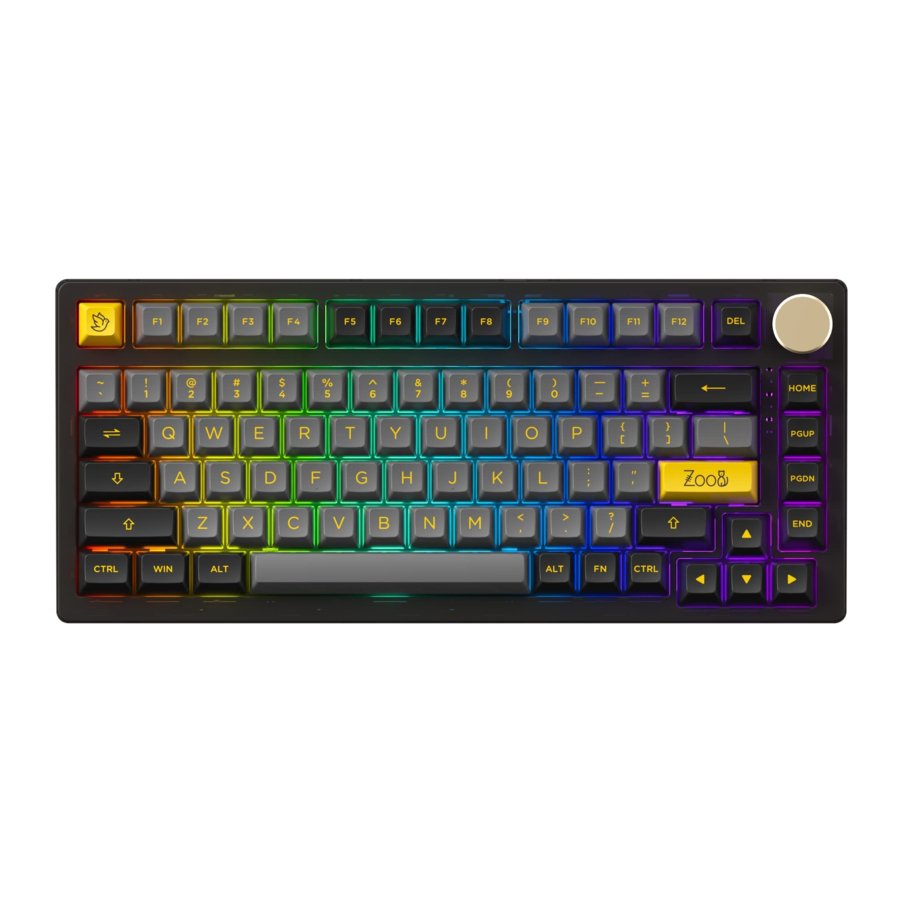
Sneltoetsen

| Fn+ | F1 | = | File Explorer (Bestandsverkenner) | Fn+ | F6 | = | Pause /Playback (Pauze/Afspelen) | Fn+ | M | = | Mute (Dempen) |
| F2 | F7 | Previous Song (Vorige nummer) | < | Decrease Volume (Volume verlagen) | |||||||
| F3 | Windows Search (Windows Zoeken) | F8 | Next Song (Volgende nummer) | > | Increase Volume (Volume verhogen) | ||||||
| F4 | Browser Homepage (Startpagina browser) | I | Insert | w | Swap W A S D with ↑↓ ← → (W A S D verwisselen met ↑↓ ← →) | ||||||
| F5 | Media | C | Calculator (Rekenmachine) |
Systeemcommando's (Windows)

| Lock Windows Key (Windows-toets vergrendelen) | Press Fn and left Win key (Druk op Fn en de linker Windows-toets) |
| Restore Factory Settings (Fabrieksinstellingen herstellen) | Hold down Fn and press ~ key for 5S (Houd Fn ingedrukt en druk 5 seconden op de ~-toets) |
| Revert Ctrl into Menu (APP) key (Ctrl terugzetten naar Menu (APP)-toets) | Hold down Fn and press right Ctrl for 3S (Houd Fn ingedrukt en druk 3 seconden op de rechter Ctrl) |

Adjust volume / light brightness (Volume / helderheid van het licht aanpassen)
Systeemcommando's (Mac)

Back Switch Indicator (Indicator achterste schakelaar)

Users can switch to Mac mode by pushing the toggle on the back to the right. (Gebruikers kunnen overschakelen naar de Mac-modus door de schakelaar aan de achterkant naar rechts te schuiven.)
| F1 | Decrease display brightness (Schermhelderheid verlagen) | F7 | Skip back (Audio) (Terugspoelen (Audio)) | F11 | Volume down (Volume lager) |
| F2 | Increases display brightness (Schermhelderheid verhogen) | F8 | Pause/Play (Audio) (Pauze/Afspelen (Audio)) | F12 | Volume up (Volume hoger) |
| F3 | Open mission control (Open missiecontrole) | F9 | Skip forward (audio) (Vooruitspoelen (audio)) | Left Win (Linker Windows-toets) | Option |
| F4 | Activate Siri (Activeer Siri) | F10 | Mute (Dempen) | Left Alt (Linker Alt) | Command |
| Right Alt (Rechter Alt) | Command |
| Fn + (F1 ~ F12) |
| F1 ~ F12 |
Achtergrondverlichting instellingen

| Fn+ | Home | = | Effect 1、 Effect 2、 Effect 3、 Effect 4、 Effect 5 | Fn+ | "↑" | = | Bright (Helderder) |
| PgUp | Effect 6、 Effect 7、 Effect 8、 Effect 9、 Effect 10 Effect 11、 Effect 12、 Effect 13、 Effect 14、 Effect 15 | "↓" | Dim (Donkerder) | ||||
| PgDn End | Effect 11、 Effect 12、 Effect 13、 Effect 14、 Effect 15 Effect 16、 Effect 17、 Effect 18、 Effect 19、 Effect 20 | "←" | Set animation direction to left (Animatierichting instellen op links) | ||||
| L | Light On / Off (Licht aan / uit) | "→" | Set animation direction to Right (Animatierichting instellen op rechts) | ||||
| \ | In all lighting effects with RGB color mode, this shortcut allows you to set the backlight color to 7 single color with RGB loop effect. (Bij alle lichteffecten met RGB-kleurenmodus kunt u met deze snelkoppeling de kleur van de achtergrondverlichting instellen op 7 enkele kleuren met een RGB-loopeffect.) | "-" | Slower Animation (Langzamere animatie) | ||||
| "+" | Faster Animation (Snellere animatie) |
| Fn+Z |
| PC Case Light Brightness Change (Helderheid van de PC-kastverlichting wijzigen) |
| Fn+X |
| PC Case Light Animation Speed Change (Animatiesnelheid van de PC-kastverlichting wijzigen) |
| Fn+ Left Ctrl |
| PC Case Light Effect Change (Effect van de PC-kastverlichting wijzigen) |
Bluetooth-functie overzicht

| Fn+ | E | = | Bluetooth device 1* (Bluetooth-apparaat 1*) |
| R | Bluetooth device 2* (Bluetooth-apparaat 2*) | ||
| T | Bluetooth device 3* (Bluetooth-apparaat 3*) | ||
| Y | 2.4G wireless device** (2.4G draadloos apparaat**) | ||
| U | Wired mode (Bedrade modus) |
*Short press to connect with slow flashing blue LED Press and hold to pair device with fast flashing blue LED (Kort indrukken om verbinding te maken met langzaam knipperende blauwe LED Houd ingedrukt om apparaat te koppelen met snel knipperende blauwe LED)
**Short press to connect with slow flashing green LED; The lighting effect will be restored when pairing succeeds. (Kort indrukken om verbinding te maken met langzaam knipperende groene LED; Het lichteffect wordt hersteld wanneer het koppelen is gelukt.)
Back Switch Indicator (Indicator achterste schakelaar)

Left: Windows (Links: Windows)
Middle: Switch to USB mode and stop charging. (Windows) (Midden: Overschakelen naar USB-modus en stoppen met opladen. (Windows))
Right: Mac (Rechts: Mac)
Instructie voor Bluetooth-installatie
Overschakelen naar de Bluetooth-modus
- When the keyboard remains unplugged, users can push the switch on the back to the left/right to enter Windows/Mac mode correspondingly. Then long press and hold Fn + E / R / T to start pairing with Bluetooth devices. The keyboard will enter Bluetooth pairing mode when the blue LEDs under E / R / T keys flash quickly. (Als het toetsenbord niet is aangesloten, kunnen gebruikers de schakelaar aan de achterkant naar links/rechts duwen om respectievelijk de Windows/Mac-modus te activeren. Houd vervolgens Fn + E / R / T lang ingedrukt om het koppelen met Bluetooth-apparaten te starten. Het toetsenbord gaat naar de Bluetooth-koppelingsmodus wanneer de blauwe LED's onder de E / R / T-toetsen snel knipperen.)
- When the Keyboard is plugged into the computer through USB interface, it will enter Bluetooth mode automatically without having to push the switch on the back. Users can directly long press and hold Fn + E / R / T to enable Bluetooth pairing. The keyboard will enter Bluetooth pairing mode when the blue LEDs under E / R / T keys flash quickly. (Wanneer het toetsenbord via de USB-interface op de computer is aangesloten, gaat het automatisch naar de Bluetooth-modus zonder dat de schakelaar aan de achterkant hoeft te worden ingedrukt. Gebruikers kunnen Fn + E / R / T direct lang ingedrukt houden om Bluetooth-koppeling in te schakelen. Het toetsenbord gaat naar de Bluetooth-koppelingsmodus wanneer de blauwe LED's onder de E / R / T-toetsen snel knipperen.)
Het Bluetooth-profiel instellen
To help user recognize individual Bluetooth device, the keyboard is equipped with both Bluetooth 5.0 and 3.0 frameworks. The device name under the Bluetooth 5.0 framework is Akko PC75 BT-1 / Akko PC75 BT-2 / Akko PC75 BT-3 while the device name under Bluetooth 3.0 is AKK0 PC75 BT3.0. Once the devices are paired through Fn + E/R/T, the system will by default memorize the last connected device before you turn off the Bluetooth mode. (Om gebruikers te helpen individuele Bluetooth-apparaten te herkennen, is het toetsenbord uitgerust met zowel Bluetooth 5.0- als 3.0-frameworks. De apparaatnaam onder het Bluetooth 5.0-framework is Akko PC75 BT-1 / Akko PC75 BT-2 / Akko PC75 BT-3, terwijl de apparaatnaam onder Bluetooth 3.0 AKK0 PC75 BT3.0 is. Zodra de apparaten zijn gekoppeld via Fn + E/R/T, onthoudt het systeem standaard het laatst verbonden apparaat voordat u de Bluetooth-modus uitschakelt.)
Bluetooth-koppeling
The keyboard can be paired with PC, Pad, smartphone and other devices with Bluetooth turned on. When you first try to search Bluetooth devices, two groups of device names shall appear with Akko PC75 BT3.0 (Bluetooth 3.0) and Akko PC75-1 (Bluetooth 5.0). Select a Bluetooth group based on your preferences (Note: some devices can only search for the Bluetooth 5.0 group). (Het toetsenbord kan worden gekoppeld met pc, Pad, smartphone en andere apparaten waarop Bluetooth is ingeschakeld. Wanneer u voor het eerst probeert naar Bluetooth-apparaten te zoeken, verschijnen er twee groepen apparaatnamen met Akko PC75 BT3.0 (Bluetooth 3.0) en Akko PC75-1 (Bluetooth 5.0). Selecteer een Bluetooth-groep op basis van uw voorkeuren (Opmerking: sommige apparaten kunnen alleen zoeken naar de Bluetooth 5.0-groep).)
Schakel het Bluetooth-apparaat in
After 4 Bluetooth devices have been paired with the keyboard, press Fn+E / Fn+R / Fn+T / Fn+Y for at least 3 seconds to quickly switch between them. (Nadat 4 Bluetooth-apparaten met het toetsenbord zijn gekoppeld, houdt u Fn+E / Fn+R / Fn+T / Fn+Y minimaal 3 seconden ingedrukt om snel tussen de apparaten te schakelen.)
Schakel het toetsenbord uit
Turn the power off on the keyboard back panel while unused for power saving; (Schakel de stroom uit op het achterpaneel van het toetsenbord wanneer het niet wordt gebruikt om energie te besparen;)
If the keyboard remains unused for over 10 mins, it would go to sleep mode and you can activate it by pressing any key. (Als het toetsenbord langer dan 10 minuten niet wordt gebruikt, gaat het in de slaapstand en kunt u het activeren door op een willekeurige toets te drukken.)
Note: The battery saver mode for Windows system would affect/delay the sleep activation time of the keyboard. (Opmerking: de batterijbesparingsmodus voor het Windows-systeem beïnvloedt/vertragt de slaapactiveringsduur van het toetsenbord.)
Reset het toetsenbord
If you forgot the specific paired front-end device or if there remains disorder in Bluetooth connection and communication, you'll need to clear the computer's Bluetooth cache by removing the PC75 keyboard from the list of connected device. (Als u het specifieke gekoppelde front-end-apparaat bent vergeten of als er een storing is in de Bluetooth-verbinding en -communicatie, moet u de Bluetooth-cache van de computer wissen door het PC75-toetsenbord uit de lijst met verbonden apparaten te verwijderen.)
Instructie voor het aanpassen van toets-/lichteffecten
- The key/lighting effects customization can be programmed by Akko driver. (De aanpassing van toets-/lichteffecten kan worden geprogrammeerd door het Akko-stuurprogramma.)
- In wired mode, the lighting effects can also achieve audio visualizer effects with Akko driver. (In de bedrade modus kunnen de lichteffecten ook audio-visualisatie-effecten bereiken met het Akko-stuurprogramma.)
- Please download the Akko Cloud driver on our website. (Download het Akko Cloud-stuurprogramma op onze website.)
- Users can download the driver via en.akkogear.com
Akko garantie- en serviceverklaring
- Akko provides 1-yr warranty for customers in mainland China. For other regions, please contact your seller (Akko distributor) for specific warranty policy. (Akko biedt 1 jaar garantie voor klanten op het vasteland van China. Neem voor andere regio's contact op met uw verkoper (Akko-distributeur) voor het specifieke garantiebeleid.)
- If the warranty window expires, customers need to pay for repairs. Akko will also provide instructions if users prefer to repair the keyboard by themselves. However, users shall take full responsibility for any loss happenedduring self-repair. (Als de garantieperiode verloopt, moeten klanten betalen voor reparaties. Akko geeft ook instructies als gebruikers het toetsenbord liever zelf repareren. Gebruikers zijn echter volledig verantwoordelijk voor eventuele verliezen die optreden tijdens zelfreparatie.)
- Dissembling the keyboard without manufacturer/seller's instruction will immediately void the warranty. (Het uit elkaar halen van het toetsenbord zonder instructie van de fabrikant/verkoper maakt de garantie onmiddellijk ongeldig.)
- The return and warranty policy may vary in different platforms and are subject to the specific distributor at the time of purchase. (Het retour- en garantiebeleid kan verschillen op verschillende platforms en is afhankelijk van de specifieke distributeur op het moment van aankoop.)
| Precautions (Voorzorgsmaatregelen) | Man-made damage is not limited to immersion, falling off, and pulling off the wires with excessive forces, etc. (Door de mens veroorzaakte schade is niet beperkt tot onderdompeling, eraf vallen en het lostrekken van de draden met overmatige kracht, enz.) |
Technische specificaties
| Dimensions (Afmetingen) | Weight (Gewicht) | Country of Origin (Land van herkomst) | Type |
| Approximately 331*115*46mm (Ongeveer 331*115*46 mm) | Approximately 1kg (Ongeveer 1 kg) | China | Mechanical Keyboard (Mechanisch toetsenbord) |
| Keycap | Connection (Verbinding) | Interface | Battery Capacity (Batterijcapaciteit) |
| PBT Material (PBT-materiaal) | Bluetooth/USB/2.4Ghz | Type-C To USB (Type-C naar USB) | 3000mAh |
| Multimedia Keys (Multimedia toetsen) | N-Key Rollover | Key/Lighting Effects Customization (Aanpassing van toets-/lichteffecten) | |
| YES (JA) | YES (JA) | The keyboard can only be customized with driver in wired mode (Het toetsenbord kan alleen worden aangepast met een stuurprogramma in de bedrade modus) | |

@akkogear


Referenties

Download handleiding
Hier kunt u de volledige pdf-versie van de handleiding downloaden. Deze kan aanvullende veiligheidsinstructies, garantie-informatie, FCC-regels, enz. bevatten.
Download Akko PC75B Plus - Handleiding mechanisch toetsenbord


